New: DisplayDash
Products
Race experiences
 Summer sale
 Plug and play
 Used by real drivers
 Secure and diverse payment options
 Fast & worldwide shipping
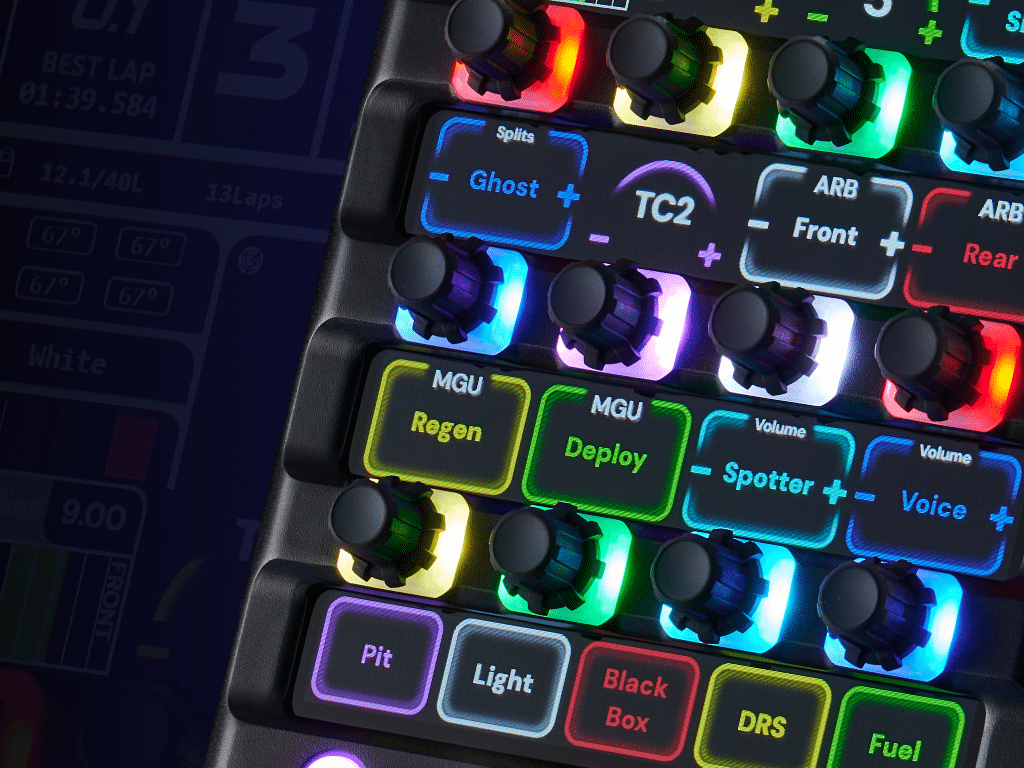
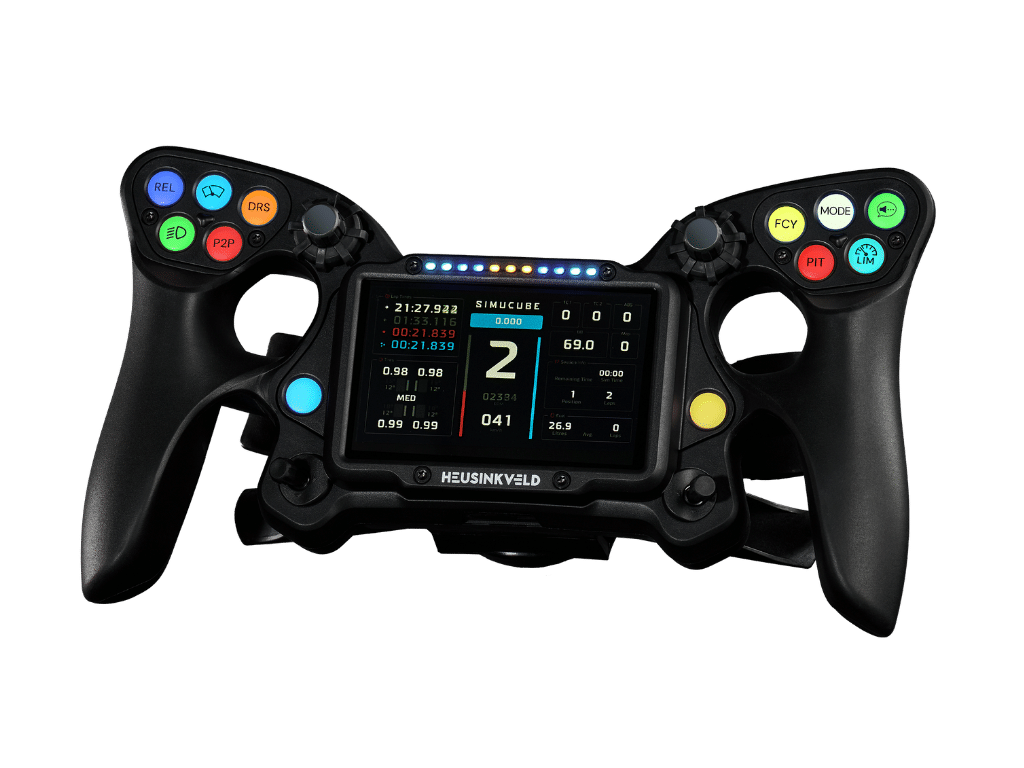
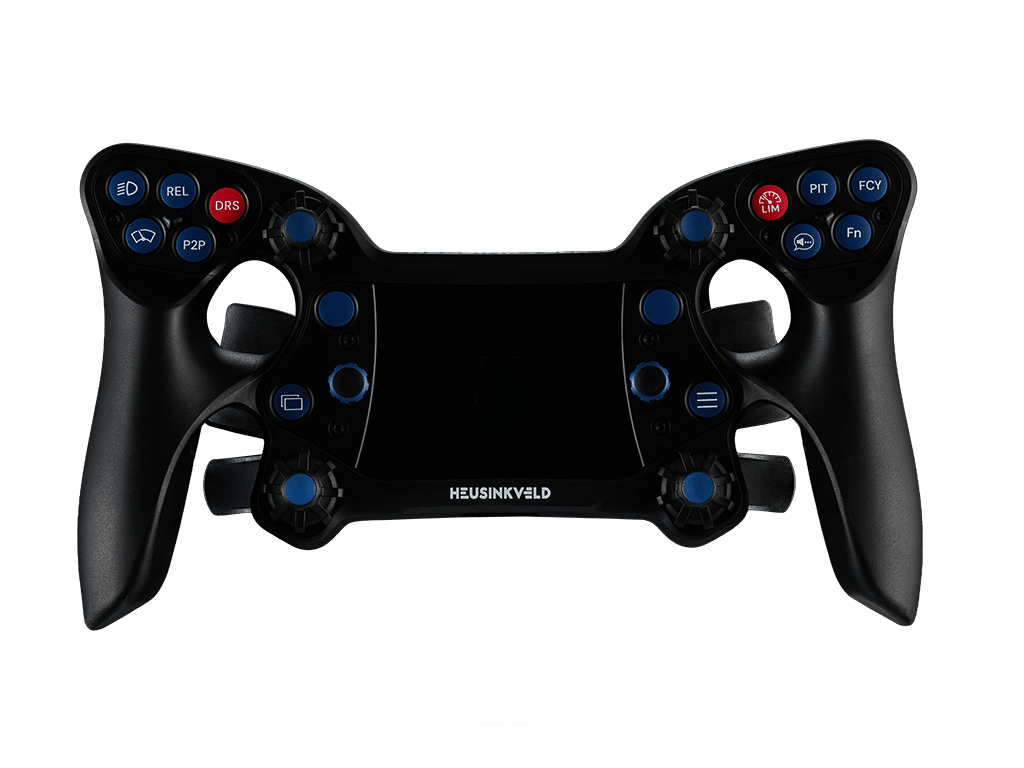
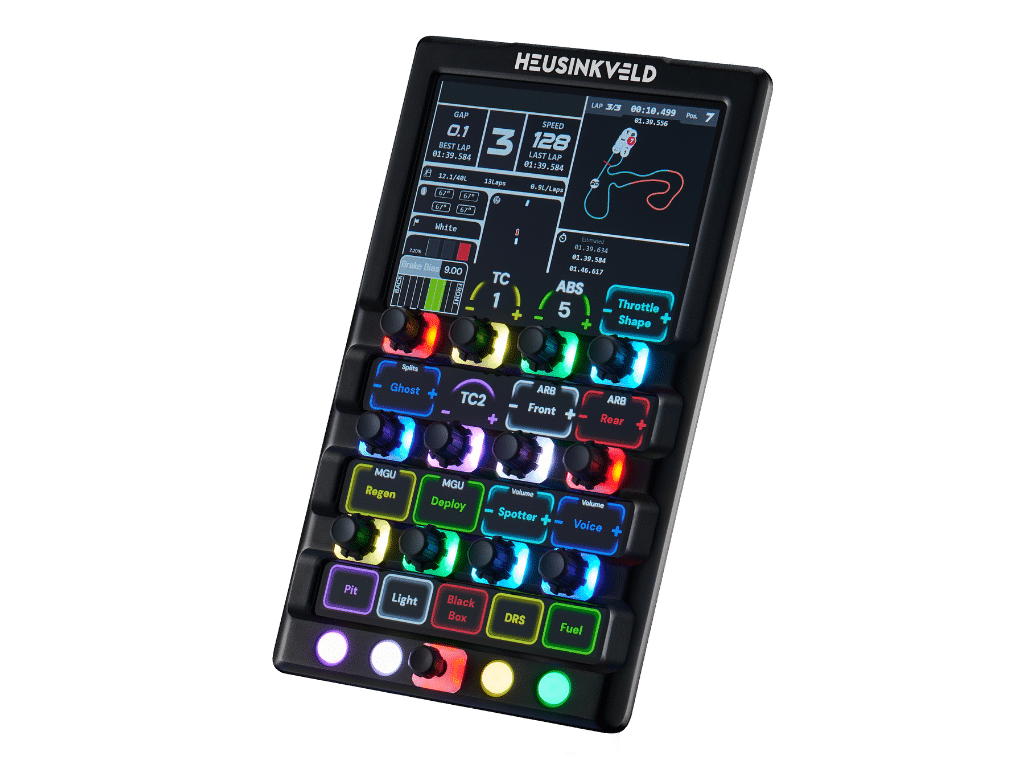
DisplayDash is a powerful dashboard tool which combines the flexibility of a digital screen and RGB-leds with the usability of physical inputs.
Because of the flexibility of the display and RGB-leds, there is a virtually unlimited amount of possible layouts and use cases for DisplayDash. We, as designer and manufacturer of the DisplayDash, cannot yet foresee exactly what you, our customers, will do with this product.
In order to get you going, please read the instructions in this Quick Start manual. Also make sure to check out the tutorial videos which show you how to set up SimHub software for your DisplayDash. It will help you to install the product and get going with the basic options of DisplayDash.
Once you get more experience with DisplayDash and the software package, feel free to unleash your creativity and create your own tailor-made dashboard layouts. Enjoy this product!
Your DisplayDash has a 100x100mm VESA mount at the rear. You can use the included bolts and tool to mount a Vesa bracket to the DisplayDash. Heusinkveld offers an optional mounting system for DisplayDash: DisplayDash Mount (HE-DD-M1).
IMPORTANT – Please note that the depth of the thread of the VESA mounting holes in the DisplayDash is 10 mm. Do not use bolts which exceed this mounting depth as this may damage the product.
When you position DisplayDash below the main simulator monitor, we strongly recommend not installing it on the side where the driver enters and exits the simulator. This means that if a drivers enters on the left side of the seat, install DisplayDash on the right side.
Especially in commercial environments where drivers are less prudent with regard to equipment, impact by feet or knees can damage the DisplayDash electronics.
Your DisplayDash only requires a single USB-C cable for both power and data. A separate HDMI or DisplayPort cable is not required.
Included in the box are the following cables:
Start with inserting the USB-C cable into the DisplayDash. The USB-C socket is the middle port on the rear of the DisplayDash. The USB-A ports to the left and right can’t be used to supply data or power to DisplayDash.
The power requirement for DisplayDash is 1,5A at 5V. This gives the following connection options on the side of your pc or powered USB hub:
Please note that not all USB-A ports supply the required 1,5A. If you connect to your pc using USB-A and DisplayDash malfunctions, connect via USB-C or use a powered USB-A hub.
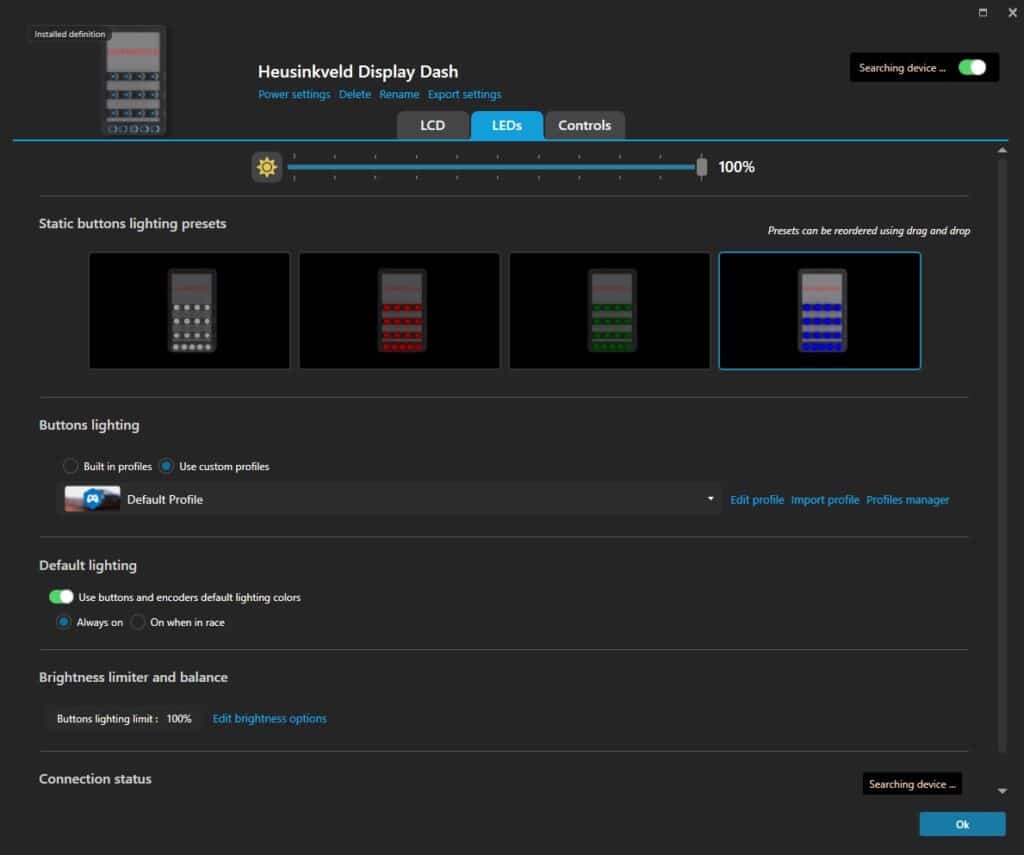
The display and RGB-leds are controlled by SimHub. This is a 3rd party application which can be downloaded at www.simhubdash.com.
DisplayDash works with the free version of SimHub. We however strongly suggest to support SimHub development by taking a paid license.
During installation of SimHub, make sure to install any display driver when asked to do so. Drivers for the digital display are included with SimHub and required for use of DisplayDash.
Your DisplayDash will be recognized by SimHub after installation. For tutorials on how to setup and adjust the contents of the display and change the RGB leds, please check the video tutorials on our website: heusinkveld.com/downloads/
We have created default SimHub DisplayDash layouts for certain software titles. These layouts can be selected within SimHub and are included in the SimHub installation.
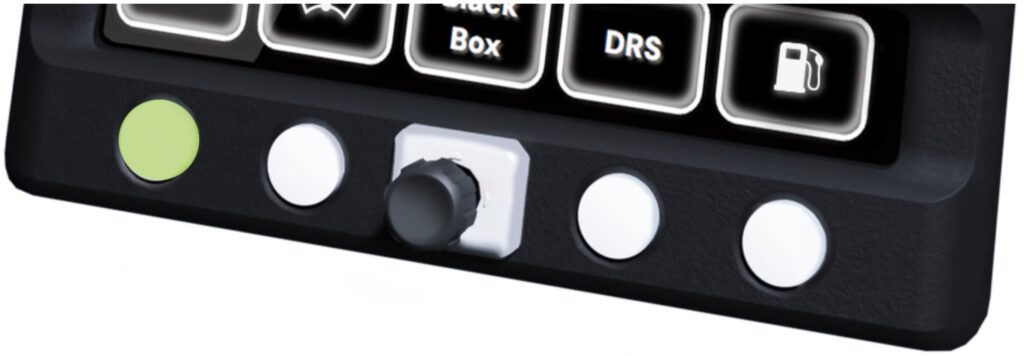
DisplayDash allows you to switch to a second output layer, so every single input gets a second output (the output ID for any input increases by 48 while in layer 2). In order to switch output layers, press and hold the layer switch button for 1 second.
The layer switch button the first button from the left on the bottom row of push buttons.
The table below shows an example of how this works.
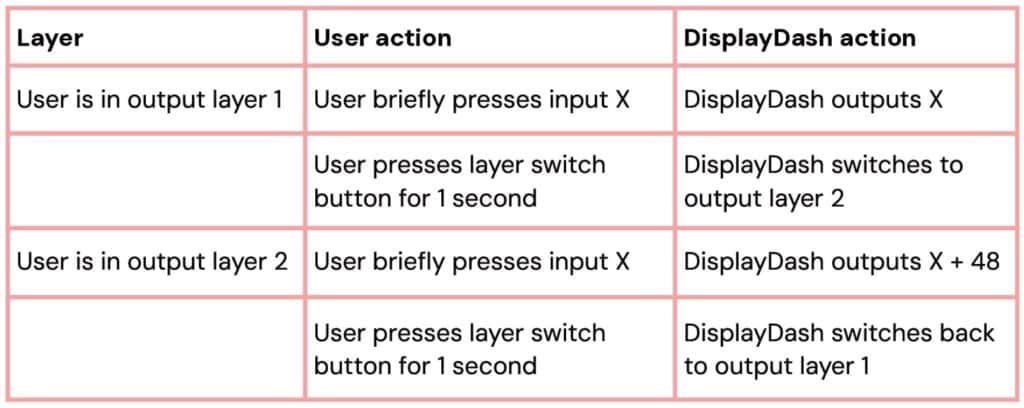
SimHub recognizes the current layer of DisplayDash. If your chosen SimHub dashboard layout supports this, the digital labels on the screen can change along with the output layer switch.
When you close the SimHub application, DisplayDash switches to 1% screen brightness and the LED’s switch off. After 10 seconds the LED’s switch back to a default setting of dimmed white.
If SimHub is restarted or if the USB-cable is reconnected, the display will return to 100% brightness. If you want a full shutdown of DisplayDash while the pc is on, there is a manual off switch. This is the second button on the left on the bottom row of push buttons:
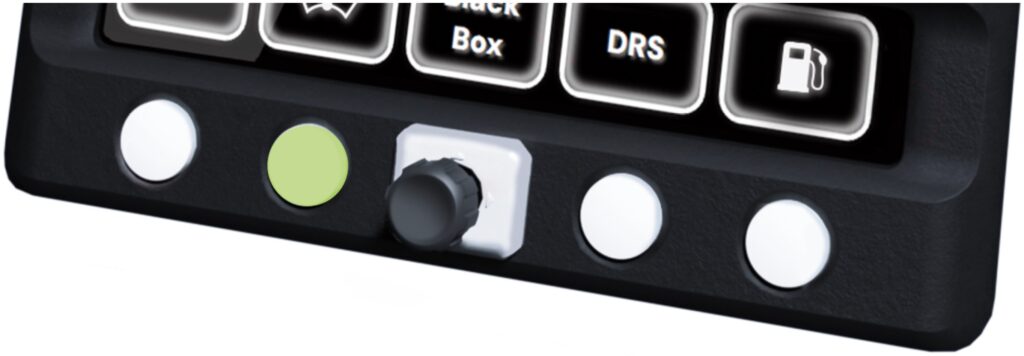
If you pc shuts down, DisplayDash will be shut down completely as well. Note: This may be motherboard dependent, as DisplayDash responds to the USB-status.
On the rear of DisplayDash are 3 USB-ports. The port in the middle is the USB-C port and used to supply power + data to your DisplayDash. The 2 USB-A ports function as a USB hub.
The energy-availability per USB-A port is 0,15A (or 150mA). This allows you to connect devices such as a dongle, mouse, keyboard or Heusinkveld products such as a shifter or pedals.
Please note that devices with high energy consumption (for example: an RGB-lit keyboard) have higher power requirements and should not be connected to DisplayDash. If you exceed the available power, DisplayDash will malfunction.